
Accessing your WordPress dashboard at Nixzoehost is designed to be seamless. While you can always log in using a username and password, we provide a "One-Click" login through your hosting panel that bypasses the need to remember extra credentials.
Method 1: The One-Click Login (Recommended)
This is the fastest and most secure method because it uses your existing Nixzoehost session to verify your identity.
-
Log in to cPanel: Access your hosting dashboard via the Nixzoehost Client Area.
-
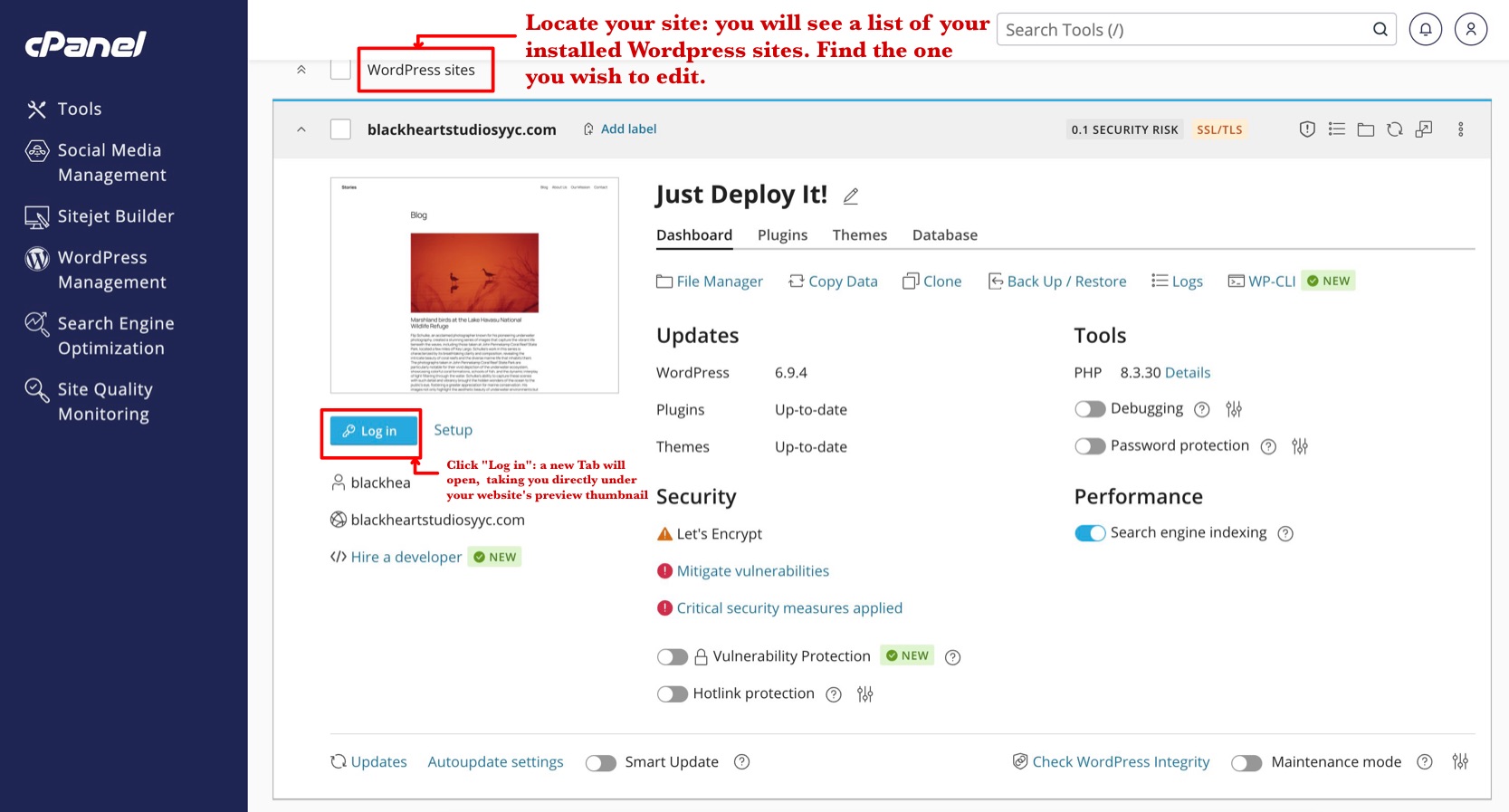
Open WordPress Management: In the left-hand sidebar, click on WordPress Management.
-
Locate Your Site: You will see a list of your installed WordPress sites. Find the one you wish to edit (e.g.,
blackheartstudiosyyc.com). -
Click "Log in": Look for the bright blue Log in button located directly under your websites preview thumbnail.
-
Start Building: A new tab will open, taking you directly into your WordPress Dashboard.
Method 2: The Traditional Login
If you prefer to log in directly through your browser or need to give a team member access, follow these steps:
-
Go to your Login URL: In your browser address bar, type your domain followed by
/wp-admin(e.g.,yourdomain.com/wp-admin). -
Enter Credentials: Use the WordPress username and password you created during the initial installation.
-
Click Log In: You will be redirected to the dashboard.
Understanding Your WordPress Dashboard
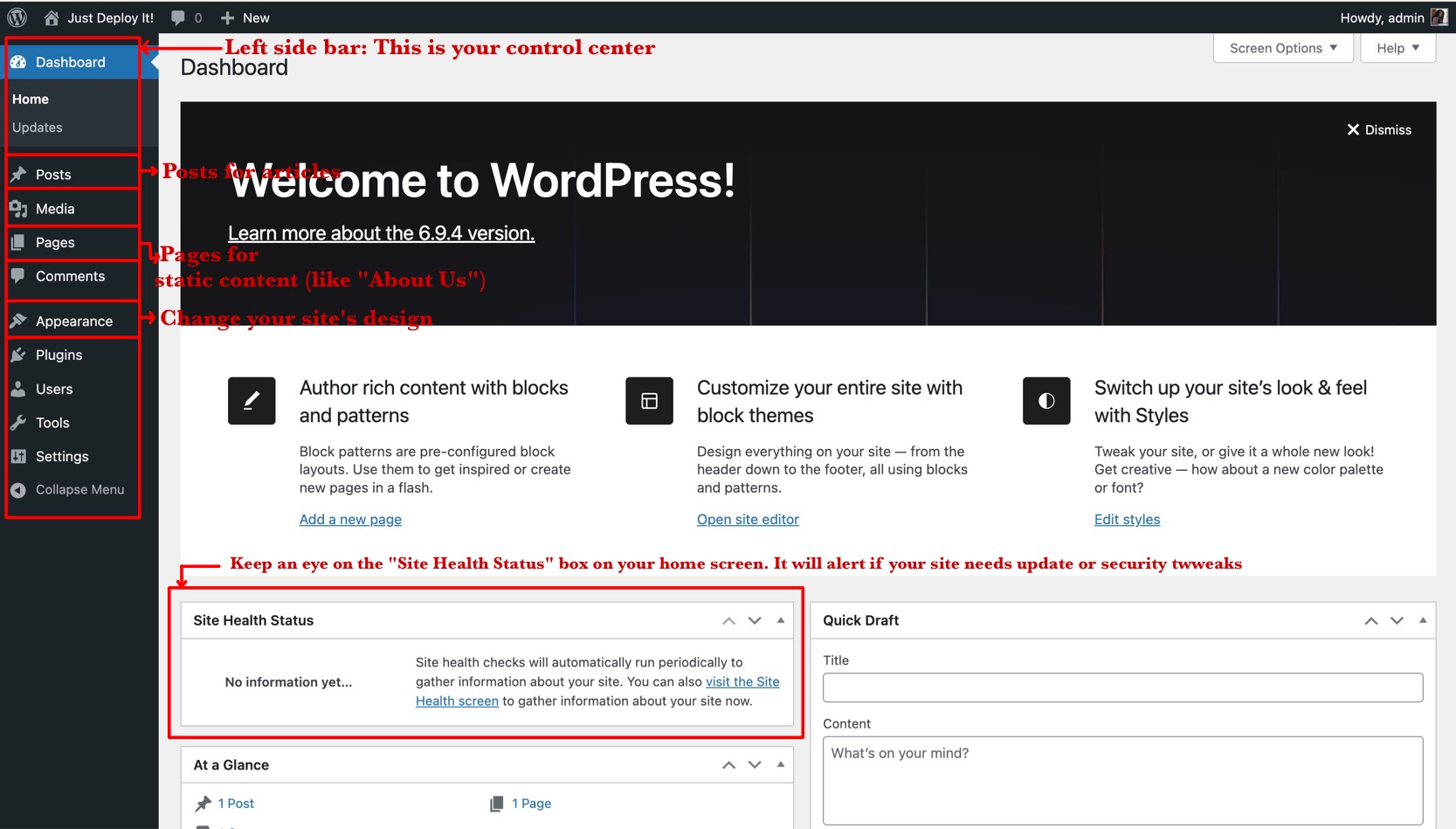
Once you are logged in, you will see a screen similar to the one below. Here are the most important areas to know:
-
Left Sidebar: This is your control center. Use Posts for articles, Pages for static content (like "About Us"), and Appearance to change your sites design.
-
Site Health: Keep an eye on the "Site Health Status" box on your home screen. It will alert you if your site needs updates or security tweaks.
-
Top Bar: The black bar at the top allows you to quickly view your live site or create a "New" post or page at any time.
Troubleshooting Tips
-
"Let's Encrypt" Warning: If you see an orange security risk label in your cPanel view, your SSL certificate might need a refresh. Click the SSL/TLS button in the top right of the WordPress Management screen to fix this.
-
Forgotten Password: If you aren't using Method 1 and forgot your password, click the "Lost your password?" link on the standard
/wp-adminlogin page. -
Maintenance Mode: If you are making major changes and don't want the public to see them yet, you can toggle the Maintenance mode switch found at the bottom right of your cPanel WordPress Manager.
-


