
How to Log In to Your Nixzoehost Account
Managing your website starts with accessing your Nixzoehost Client Area and your Hosting Control Panel (cPanel). This guide will walk you through the login process, including how to handle Two-Factor Authentication (2FA).
Step 1: Access the Client Login Page
To manage your billing, services, and domains, you first need to log in to the Nixzoehost Portal.
-
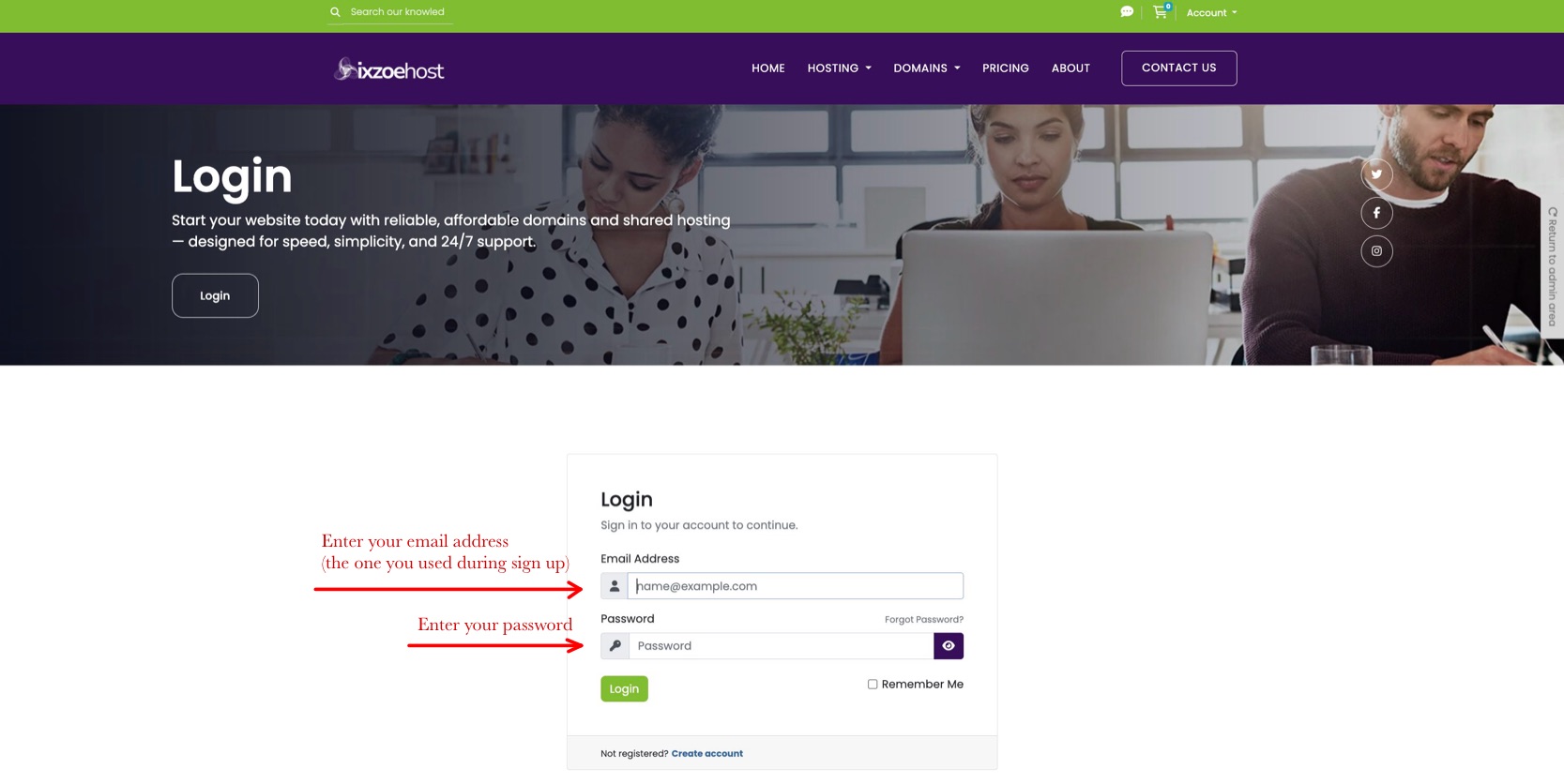
Navigate to the Nixzoehost Login Page.
-
Enter your Email Address (the one you used during signup).
-
Enter your Password.
-
Click the Login button.
Step 2: Two-Factor Authentication (If Enabled)
For your security, we highly recommend enabling Two-Factor Authentication (2FA). If you have this active:
-
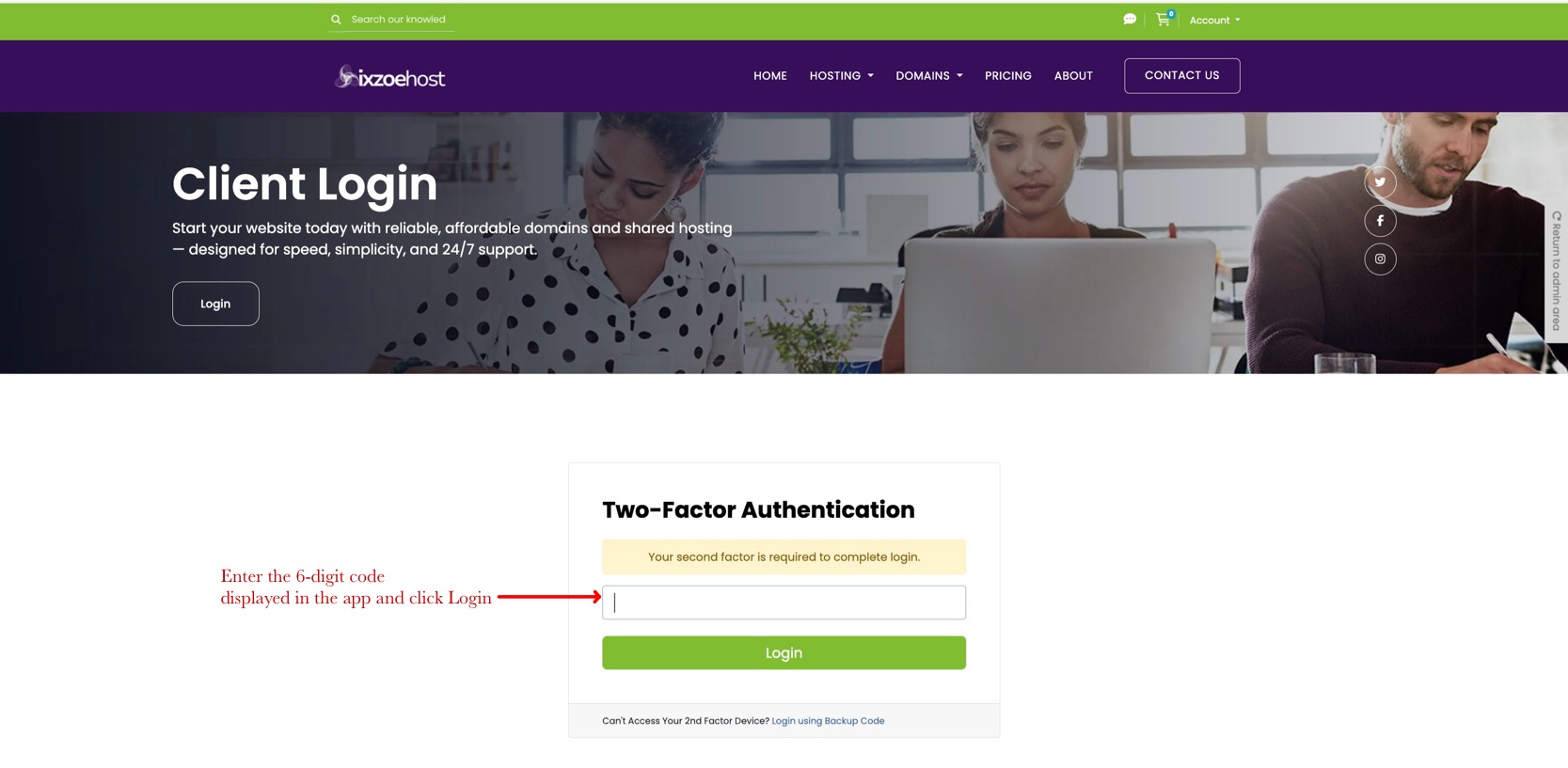
After entering your password, you will be prompted for your "Second Factor."
-
Open your authenticator app (like Google Authenticator or Authy) on your mobile device.
-
Enter the 6-digit code displayed in the app and click Login.
-
Lost your device? Click "Login using Backup Code" at the bottom of the form.
Step 3: Navigating Your Dashboard
Once logged in, you will arrive at your Client Dashboard. Here, you can see an overview of your active products.
-
In the "Your Active Products/Services" section, you will see your hosting plans (e.g., Nixzoe Flux).
-
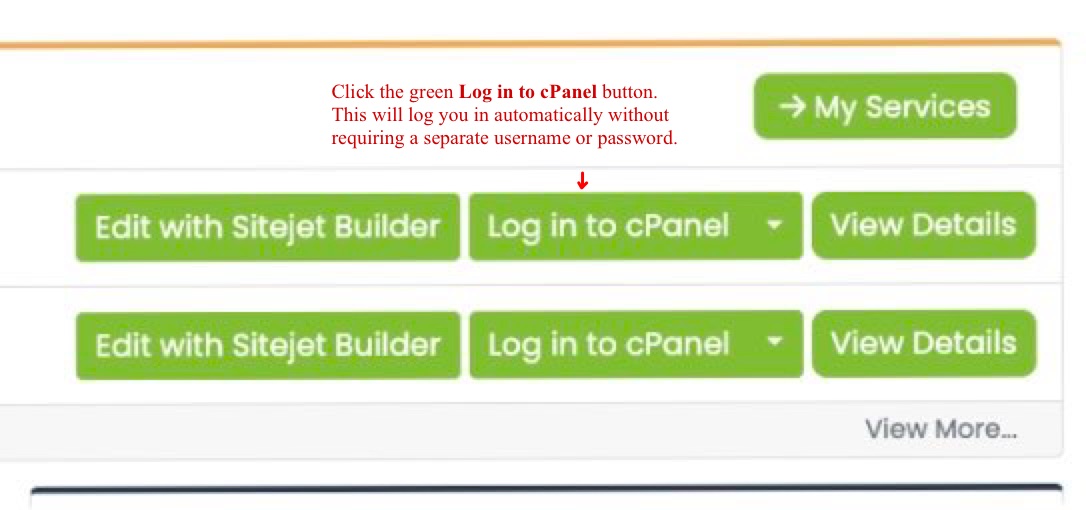
From here, you have quick-action buttons to manage your site immediately.
Step 4: Logging into cPanel
The cPanel is where you manage your files, emails, and databases. There are two ways to get there:
Option A: The One-Click Login (Recommended)
-
From your Client Dashboard, find your service.
-
Click the green Log in to cPanel button. This will log you in automatically without requiring a separate username or password.
Option B: Manual Login
-
You can also reach cPanel by adding
:2083to the end of your domain name (e.g.,yourdomain.com:2083) and using the credentials found in your Welcome Email.
Step 5: Inside the cPanel Interface
Once you are inside cPanel, you have full control over your hosting environment:
-
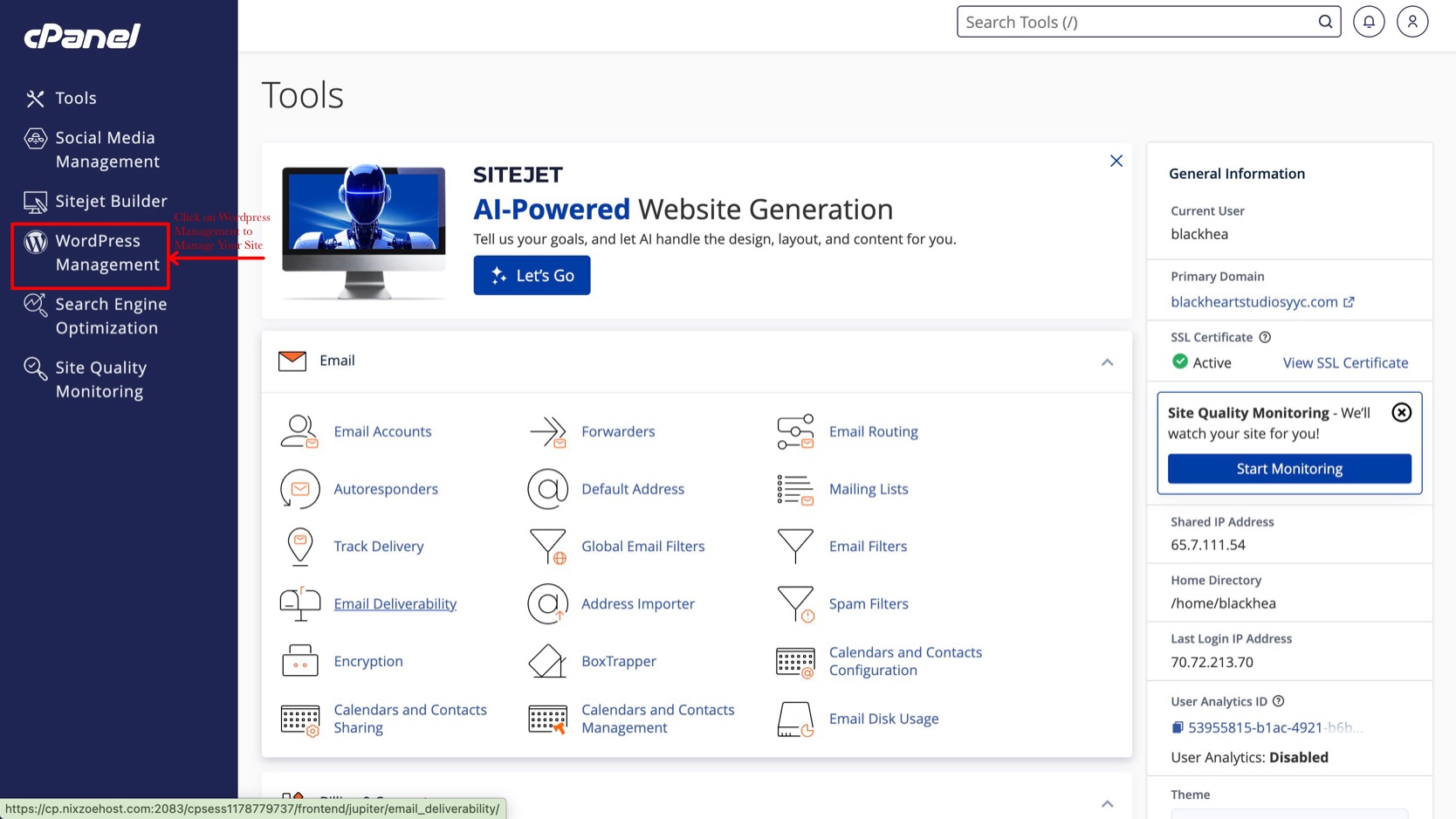
Sitejet Builder: Use the "AI-Powered Website Generation" tool to build a professional site in minutes.
-
Email Management: Create new email accounts, set up forwarders, and check your webmail.
-
SSL Status: Check the right-hand sidebar to ensure your SSL Certificate is active (marked with a green checkmark).
Step 6: Accessing Your WordPress Management
Once you are inside the cPanel dashboard, Nixzoehost makes it incredibly easy to manage your WordPress site.
-
Look to the Left Sidebar: In the main cPanel menu, locate the sidebar on the left-hand side.
-
Click on WordPress Management: Click the WordPress Management icon (located just below the Sitejet Builder option).
-
Manage Your Site: This will open the specialized WordPress toolkit where you can:
-
Login to your WordPress admin dashboard without a password.
-
Update your WordPress plugins and themes.
-
Manage backups and security settings.
-
Create a Staging site to test changes before they go live.
-
Pro-Tip: One-Click WordPress Admin Login
Instead of remembering a separate login for yourdomain.com/wp-admin, you can simply click the "Login" button next to your domain inside the WordPress Management tool. Our system will securely authenticate you and take you directly to your WordPress dashboard.
Note: If you haven't installed WordPress yet, you will see a button to "Install" instead. Simply follow the prompts, and our AI-powered installer will have your site ready in under 60 seconds!
Troubleshooting Tips
-
Forgotten Password: Click the "Forgot Password?" link on the login page to receive a reset link via email.
-
IP Block: If you enter the wrong password too many times, our firewall may temporarily block your IP for security. If this happens, wait 15 minutes or contact our support team.
-
Redirecting to HTTPS: If you see a security warning while logging in, ensure you are using the official
https://nixzoehost.comURL.


